
What is a vault in Proton Pass?
- Reading
- 2 mins
- Category
- Using Proton Pass
A vault in Proton Pass is an encrypted digital container that contains your items. An item can be a login, an alias, a secured note. Logins include your username, password, the URL of the website the password is for, 2FA codes, and any notes you have saved for that login.
Are my vaults secure?
With Proton Pass, all data in your vaults is securely encrypted using AES-256 symmetric-key encryption. Each vault has its own key, which is used for encrypting its items.
This encryption is end-to-end — it uses a key derived from a password that only you know (Proton Pass uses your Proton Account password) and is performed on your device before being stored on our servers. Your data can only be decrypted by you on your device. Proton never knows your Proton Account password, so we can’t access your Pass data.
For additional security, you should enable two-factor authentication on your Proton Account.
Learn more about the Proton Pass security model
How to create a new vault
When you start using Proton Pass, it will create a default vault for you. Below, we show you how to create a new vault in the Proton Pass browser extensions and mobile apps.
Browser extension
1. Open the Proton Pass browser extension. Go to the Pass icon menu → Create vault.

2. Choose a Title, color, and icon for your new vault. Click Create vault when you’re ready.

3. To access your new vault, go to Pass menu → All items → your vault.

Mobile apps
1. Open the Proton Pass app. Go to Vaults (icon at the top left of the screen).

2. Tap Create vault.
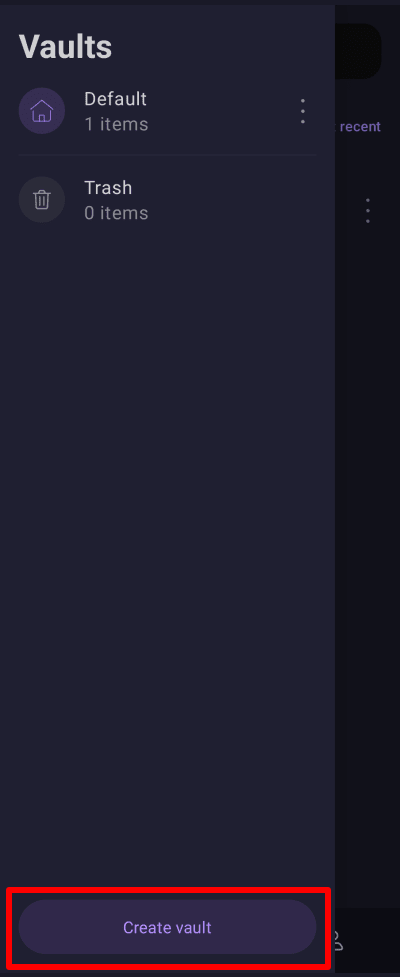
2. Choose a Title, color, and icon for your new vault. Click Create vault when you’re ready.

3. To access your new vault, go to Vaults (icon at the top left of the screen) → your vault.

How to hide a vault
You can hide a vault so that it doesn’t appear in your list of vaults, and its content won’t be available for search or autofill.
- Select the ⋮ icon next to All items → Organize vaults

2. Remove the tick next to the vault(s) you want to hide → Save

3. The vault is now hidden from your Vaults list and won’t be available for search or autofill. If you want to restore a vault, you can simply select Organize vaults, tick the box next to a hidden vault, and select Save.
