
Defina um nome de remetente e uma assinatura para seus e-mails
- Leitura
- 2 min
- Categoria
- Endereços e identidades
Você pode adicionar um nome de exibição e uma assinatura personalizados às suas mensagens do Proton Mail.
Definir um nome de exibição
Seu nome de exibição (ou nome do remetente) é o que os destinatários veem no campo De quando você envia uma mensagem para eles.
Você não precisa definir um. Se deixar o seu nome de exibição em branco, os destinatários geralmente verão apenas o seu endereço de e-mail.
Como adicionar ou editar seu nome de exibição
- Inicie sessão em account.proton.me. Acesse Configurações → Todas as configurações.
- Selecione Identidade e endereços na barra lateral e role até Nome de exibição e assinatura.
- Insira seu nome de exibição e clique em Atualizar.

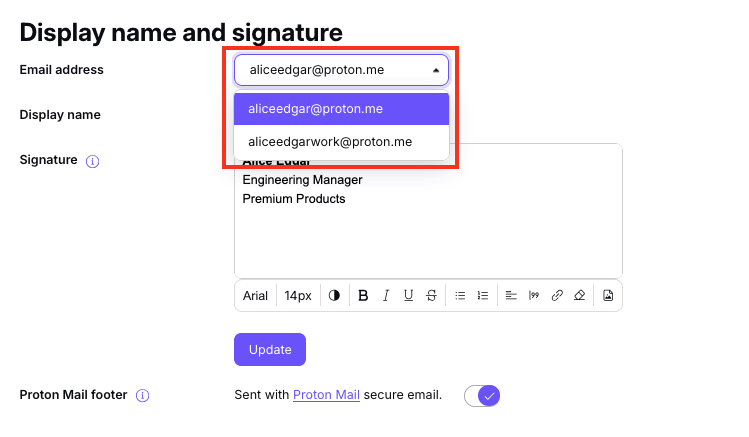
Se você tiver vários endereços de e-mail, poderá adicionar um nome de exibição diferente para cada um. Basta clicar em Endereço de e-mail e selecionar o endereço desejado no menu.
Definir uma assinatura de e-mail
Sua assinatura de e-mail aparece no final das suas mensagens.
Ao definir uma assinatura de e-mail para um endereço, ela se torna sua assinatura padrão. No entanto, você pode alterá-la ou removê-la para qualquer mensagem individual que enviar.
Como adicionar ou editar sua assinatura de e-mail
- Inicie sessão em account.proton.me. Acesse Configurações → Todas as configurações.
- Selecione Identidade e endereços na barra lateral e role até Nome de exibição e assinatura.
- Adicione sua assinatura e clique em Atualizar.
Se você tiver vários endereços de e-mail, poderá definir uma assinatura diferente para cada um. Basta clicar em Endereço de e-mail e selecionar o endereço desejado no menu.
Formatar sua assinatura de e-mail
Você também pode adicionar uma formatação personalizada à sua assinatura.
Use a barra de ferramentas sob o campo de assinatura para personalizar o estilo, o tamanho e a cor do texto. Você também pode adicionar imagens, listas, citações e muito mais.

Para que seus destinatários vejam imagens na sua assinatura, eles precisarão ter a opção carregar conteúdo remoto ativada nas configurações do provedor de e-mail deles.
Você também pode usar um gerador de assinaturas de e-mail de terceiros
Here’s how to import a formatted signature from a third-party service:
- Copie o texto da sua assinatura formatada do gerador de terceiros (pode ser texto ou código).
- Sign in to account.proton.me and go to Identity and addresses in Settings.
- Cole sua assinatura no campo Assinatura campo.
- Clique em Atualizar para salvar.